
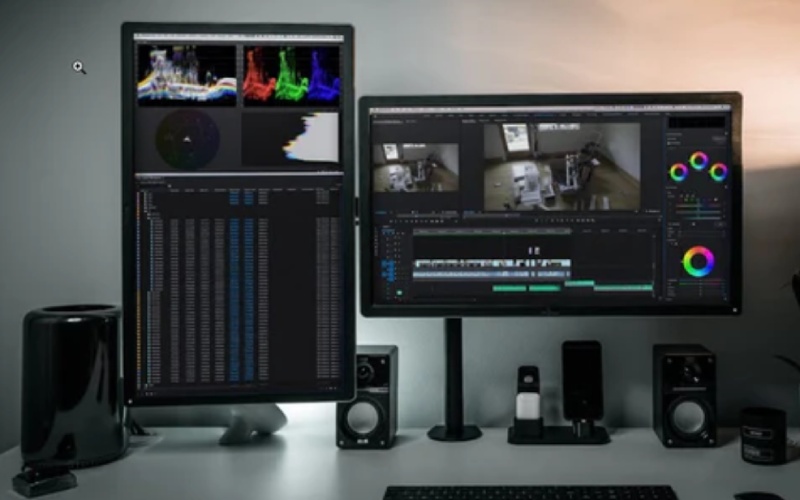

Efficiency plays a big role in video editing, helping you work faster and stay organized. Many editors find that using dual-screen setups can make a significant difference, allowing them to view multiple tools and timelines at once.
Dual-screen setups are becoming more common, offering an easy way to improve productivity. But what about when you need to work on the go? Portable dual-screen setups offer the same benefits without the need for bulky equipment. In this article, we’ll look at how these setups can help you work more efficiently and how to choose the right portable monitors for your needs.
Why a Dual-Screen Setup Enhances Productivity
A dual-screen setup offers substantial multitasking benefits, making video editing more efficient. By dedicating one screen to your editing timeline and the other to the preview window, effects, or reference materials, you eliminate the need to constantly switch between windows. This seamless integration boosts workflow and helps you stay focused on the task at hand.
In addition, using dual screens allows for better task separation. For example, you can keep your editing tools open on one screen while using the other for research or reference footage, reducing distractions and improving productivity.
The real advantage comes with portable dual-screen setups, which allow these productivity benefits without being tied to a bulky desktop. Ideal for freelance editors, travelers, or anyone working from multiple locations, a portable setup is lightweight and space-efficient.`
Essential Features of a Portable Dual-Screen Setup
When selecting a portable dual-screen setup, there are several factors to consider to ensure it’s suitable for video editing:
- Screen size and resolution: A monitor with a 15-17 inch screen and Full HD (1920×1080) resolution strikes a good balance between portability and clarity, providing enough space for editing without being too large to carry around.
- Connectivity options: Look for a portable monitor that supports USB-C or HDMI connections. USB-C is particularly convenient as it can handle both data transfer and power through a single cable, reducing clutter and setup time.
- Portability and weight: A key benefit of portable monitors is their lightweight design, so choose one that is easy to transport. Aim for a monitor that weighs around 2-3 pounds to ensure ease of use when moving between locations.
- Display quality: For precise video editing, a monitor with good color accuracy (e.g., sRGB coverage) and a decent refresh rate (at least 60Hz) is essential. This ensures that your edits are represented accurately and smoothly on screen.
How to Set Up a Portable Dual-Screen Setup
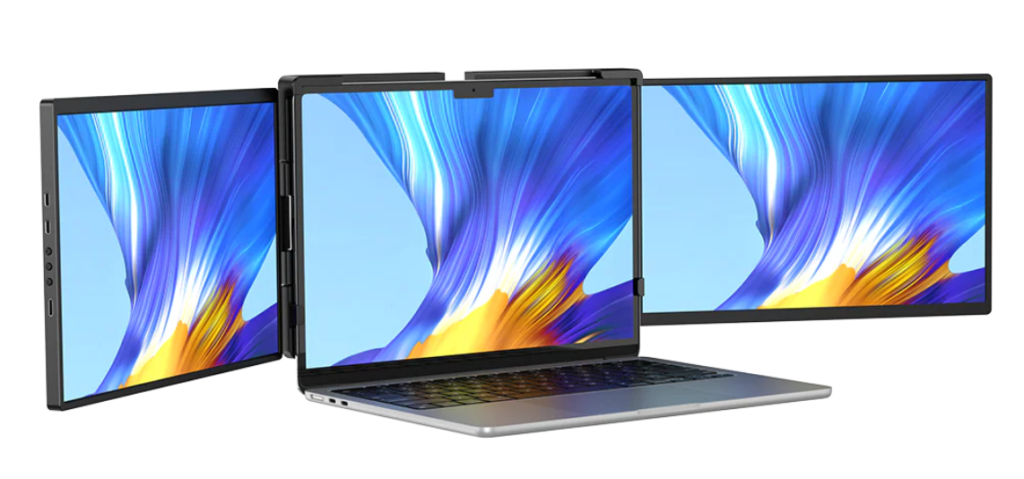
Setting up a portable dual-screen setup is simple and can greatly enhance your video editing workflow. Follow these easy steps to get started:
1. Connecting the Portable Monitor to Your Laptop
- USB-C Connection: Most modern portable monitors use USB-C for both power and data transfer. Simply plug the USB-C cable from the monitor into your laptop’s USB-C port. The monitor should power on automatically and begin displaying content.
- HDMI Connection: If your monitor uses HDMI, you’ll need an HDMI cable. Connect one end of the HDMI cable to the monitor and the other end to your laptop’s HDMI port (or use an adapter if your laptop only has USB-C ports).
- Wireless Connection: Some portable monitors support wireless connections. Follow the manufacturer’s instructions to connect your laptop to the monitor via Wi-Fi or Bluetooth. Ensure both devices are on the same network for seamless connectivity.
2. Adjusting Display Settings for Seamless Integration
Extended vs. Mirrored Mode:
- Extended Mode: This mode allows you to extend your desktop across both screens, making each screen act as a separate workspace. To enable extended mode, right-click on your desktop, go to Display Settings, and select Extend these displays.
- Mirrored Mode: If you prefer to display the same content on both screens (useful for presentations or sharing), select Duplicate these displays in the Display Settings. This will show the same content on your laptop and the portable monitor.
Display Orientation and Resolution:
Adjust the screen orientation (landscape or portrait) based on your preference. Also, set the resolution of the portable monitor to match your laptop’s for optimal clarity. This is usually done under Display Settings > Advanced Display Settings.
3. Positioning and Ergonomics to Avoid Strain
- Monitor Placement: Position the portable monitor at a comfortable viewing distance, typically 20-30 inches from your eyes, and slightly below eye level. This will help prevent neck and eye strain during long editing sessions.
- Angle Adjustment: Tilt the monitor slightly to avoid glare and to ensure the screen is perpendicular to your line of sight. Most portable monitors are adjustable, so fine-tune the angle for maximum comfort.
- Laptop Placement: Keep your laptop at an appropriate height to maintain good posture. A laptop stand or adjustable desk can help you position the laptop at eye level, reducing strain on your neck and back.
Top Portable Dual‑Screen Monitors for Video Editing
Here are some excellent UPERFECT portable monitors that work well as second screens for video editing workflows. These options balance clarity, connectivity, and portability to help you view timelines, previews, and tools more efficiently while editing.
1. UPERFECT UColor O2 16″ Portable Monitor
A solid choice for creative work, including video editing, thanks to its OLED panel and higher‑than‑FHD resolution with smooth motion support.
Features
- 16″ OLED display with rich colors and contrast
- 2880×1800 resolution and 120 Hz refresh rate
- USB‑C / HDMI connectivity
Pros
- Excellent color and contrast help judge footage more accurately
- 120 Hz refresh rate makes timeline playback smoother
- Good balance between size and portability
Cons
- Slightly pricier than basic portable monitors
- Not as bright as some LCD alternatives
Best for: Editors who value color fidelity and smoother visuals on the go.
2. UPERFECT UFree V 15.6″ Wireless Portable Monitor
A flexible, lightweight second screen that supports wireless and wired connections, ideal if you want minimal cables with your setup.
Features
- 15.6″ Full HD IPS screen
- Wired USB‑C or mini‑HDMI and wireless extension support
- Slim, portable design
Pros
- Easy wireless connectivity without extra adapters
- Lightweight and easy to position alongside your laptop
- Full HD clarity for timelines and preview windows
Cons
- Not as high resolution as 4K or QHD models
- Color accuracy is suited for productivity or general editing rather than advanced color grading
Best for: Editors needing a quick, portable second display for general productivity and timeline management.
3. UPERFECT 16″ 2.5K QLED Portable Monitor
This 2.5K QLED monitor offers sharp visuals and good color coverage, elevating clarity for detailed editing tasks.
Features
- 2560×1600 QHD resolution and HDR
- QLED panel with enhanced color performance
- USB‑C and VESA‑ready for flexible mounting
Pros
- Higher resolution improves detail for editing windows
- QLED panel delivers richer colors than standard IPS
- Great mid‑range balance of quality and price
Cons
- Mid‑range brightness may struggle in very bright environments
- HDR performance varies by content
Best for: Editors who want more screen detail and vivid color without jumping to OLED or 4K.
4. UPERFECT True 4K 15.6″ Portable Monitor
A 4K portable screen that brings high detail to previews, making it excellent for editing fine footage and checking clarity.
Features
- 3840×2160 UHD resolution
- USB‑C + HDMI connectivity
- HDR and high contrast ratio
Pros
- Ultra‑high resolution ideal for detailed visual work
- HDR support enhances perceptual depth
- USB‑C simplifies connection to laptops
Cons
- More demanding on power and performance
- Larger file previews may require scaling adjustments
Best for: Editors who prioritize resolution and detail for reviewing high‑resolution footage.
Considerations When Choosing
- Resolution & Color: Higher resolutions (QHD or 4K) help reveal finer details; OLED or QLED improves color accuracy which is beneficial for editing.
- Portability vs. Size: Larger screens give more workspace but weigh more; pick a balance that fits your travel or workspace habits.
- Connectivity: USB‑C is most convenient, but ensure HDMI or wireless options if you use different devices.
Conclusion
A portable dual-screen setup is about working smarter and making the most of your time. As video editing becomes more mobile and flexible, having the right tools that adapt to your lifestyle is crucial. With portable monitors, you gain the freedom to work in different environments without sacrificing productivity.